To protect VMware vSphere VMs, you add your vCenter server, and then select the access node, credentials, storage, and backup plan you created as part of Get started with Commvault.
Multi-region environments
If your environment spans multiple regions, configure multi-region backup plans.
Backup configuration
Start the configuration
-
From the Command Center navigation pane, go to Explore > Service catalog.
-
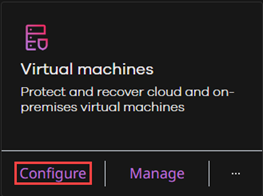
On the Virtual machines tile, click Configure.
-
Click VMware vCenter.
-
Click Add vCenter.
Add a vCenter server
-
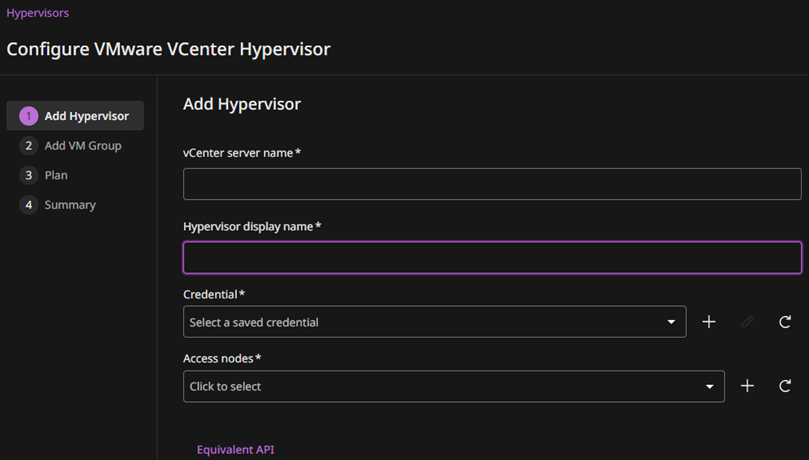
Enter the hostname or IP address of the vCenter server.
Use a non-default vCenter port
If your vCenter server uses a non-default port, append the port number to the host name. For example,
vc.example.com:1500. -
Create credentials with the username and password for the vCenter user account that has the role you created in Create VMware permissions for Commvault using a PowerShell script.
-
For Access nodes, select Automatic or a specific access node.
For guidance, see Plan for VMware vSphere protection.
For instructions, see Deploy an access node for VMware vSphere.
If no access node is available to select, click the add button to create one.
-
If a certificate warning appears for vCenter, enable the Skip SSL/TLS certificate verification toggle key only if you trust the vCenter endpoint and understand the security impact.
Linux access node certificate validation
If you use a Linux access node, certificate validation can fail intermittently when the certificate issuer is not trusted by the Linux OS certificate store.
To resolve this issue, add the certificate to
/etc/ssl/certs/ca-bundle.crt, runcert-sync /etc/ssl/certs/ca-bundle.crt, and retry the VMware vSphere hypervisor configuration.
Create a VM group and assign a backup plan
A VM group is a set of VMs that share the same backup frequency, retention, and storage settings, as defined in the backup plan.
After you complete these steps, you can create additional VM groups for the same hypervisor to apply different backup plans or to organize VMs by workload.
-
Select the VMs to include in the VM group.
In most environments, use rules to dynamically select VMs. You can also select VMs directly. For more information, see Configuring VM groups, sets of VMs to back up with the same settings.
Important
Don't include VMware Site Recovery Manager (SRM) placeholder VMs. They're not supported and can cause backups to fail.
-
Select a backup plan.
The backup plan defines backup frequency, retention, storage, and additional backup copies.
-
Review the summary and save the configuration.
Validation
Verify the configuration
Confirm the following:
-
The vCenter server appears in the list of configured hypervisors.
-
The VM group contains the expected VMs.
-
The backup plan is associated with the VM group.
Run a backup
Run a backup for the VM group you created to confirm that backups work correctly.
You can also test backups for some individual VMs.
-
From the Command Center navigation pane, go to Protect > Virtual machines.
-
Click the VM group.
-
Click Back up.
-
Select Incremental or Full, and then click Run.
Confirm that the backup completed successfully
-
From the Command Center navigation pane, go to Monitor > Jobs.
-
Locate the backup job for the VM group.
-
Confirm that the job status is Completed.
If the job fails, review the error details. Common causes include permission issues, network connectivity problems, and snapshot failures in the VMware vSphere environment.
If the job fails while reading VM data, confirm that your environment supports the selected transport mode and that access nodes are placed correctly. For more information, see Plan for VMware vSphere protection.
Test a restore
To confirm you can restore data, perform a simple file restore.
-
From the Command Center navigation pane, go to Protect > Virtual machines.
-
Click the VM group, and then click a VM.
-
In the Recovery points tile, select a recent backup.
-
Click Restore.
-
Select Guest files, and then restore a small file or folder.
-
Verify that the restored data is accessible.