VM groups define which VMs are protected and how protection is applied in Commvault. You can use VM groups to organize VMs, apply protection settings, and control how backup and restore operations run.
How VM groups work
A VM group combines:
-
Resource selection: Which VMs are included
-
Protection settings: How backups and retention are applied
-
Execution settings: How backup operations run
-
Infrastructure settings: Where and how data is processed
Select VMs for the group
You can include VMs either by selecting them manually or by using rules to include them dynamically.
Dynamic association with rules
Use rules to dynamically associate VMs with VM groups based on VM attributes.
Instead of selecting VMs directly, define rules such as:
-
VM name matches a pattern
-
VM belongs to a specific cluster, folder, or resource group
-
VM has a specific state or property
The system evaluates these rules and automatically includes matching VMs in the group.
Examples
-
Include all VMs where the name starts with
prod-or that have the tagFinance -
Include all VMs in a specific cluster or resource group
-
Include all VMs that have a tag such as
Environment=Production
How rule matching works
-
Select all to include VMs that match every rule, using AND logic
-
Select any to include VMs that match at least one rule, using OR logic
How dynamic VM groups behave
When you use rules, group membership updates automatically.
-
New VMs that match the rules are included
-
VMs that no longer match the rules are excluded
This keeps the group aligned with your environment as it changes.
Create rules for dynamic association
To dynamically associate VMs, define one or more rules.
-
On the Content tab for the VM group, click Edit.
-
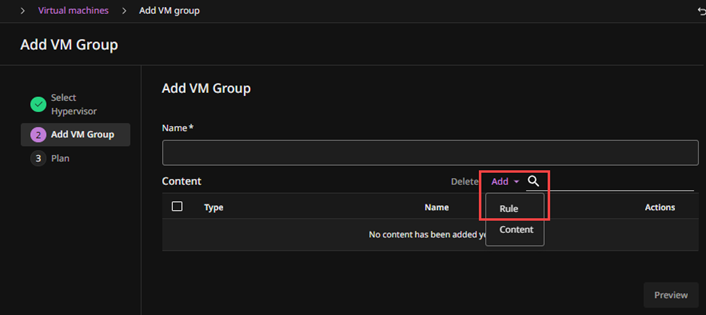
Click Add, and then select Rule.
-
Click Add rule.
-
For Rule, select the attribute to evaluate, such as Virtual machine name or pattern, Host, or Power state.
-
In the operator list, select how the value is evaluated, such as Equals or Contains.
-
In Value, enter a value or click Browse to select from available resources.
-
Optional: Add more rules and select whether VMs must match all or any conditions.
Manual selection of specific VMs
Use manual selection when you want to explicitly choose individual VMs.
-
Select individual VMs
-
Select a VM from a cluster, folder, or cloud resource group
Examples
-
Select specific VMs that you want to manage together
-
Select VMs that belong to a test environment
-
Select VMs that you have already tagged and want to organize into a group
When to use manual selection
Use manual selection in these scenarios:
-
Managing a small number of VMs
-
Creating temporary or test groups
-
Including specific exceptions
Select resources manually
To add resources, browse the inventory and select the items that you want to include.
-
On the Content tab for the VM group, click Edit.
-
Click Add, and then select Content.
-
For Browse and select VMs, select how to view resources:
-
Hosts and clusters: Select entire clusters or hosts
-
VMs and templates: Select individual VMs or templates
-
Datastores and datastore clusters: Select based on storage
-
Tags and categories: Select VMs using tag-based organization
-
-
Expand the inventory tree and select the check boxes for the resources that you want to include.
-
Click Save.
Remove specific VMs from the group
If you selected the wrong VMs, remove them from the VM group content.
-
On the Content tab for the VM group, click Edit.
-
Select the VMs that you want to remove from backup content, and then at the top of the dialog box, click Remove.
-
Click Save.
Choose access nodes for a VM group
By default, Commvault selects access nodes based on your environment and configuration.
If you specify access nodes for a VM group, backups for the VM group run only on those access nodes. Access node settings for the hypervisor aren’t used for backups unless the same access nodes are also selected for the VM group. For restores, Commvault can use access nodes that are specified either on the hypervisor or on the VM group.
Note
Use different Linux access nodes for on-premises and cloud hypervisor workloads to avoid issues with the Commvault Communications Service (CVD) on Linux access nodes. For example, if a Linux access node for VMware is also configured as a MediaAgent for other workloads, backup and restore operations might fail.
Protection and SLAs
| Setting | Description | Use cases |
|---|---|---|
| SLA | Define recovery objectives and compliance expectations. | Enforcing recovery targets and compliance |
| Backup plan association | Apply a backup plan that defines backup frequency, retention, and storage. | Applying consistent protection policies |
| Backup frequency | Define how often backups run. | Meeting RPO requirements |
| Include or exclude disks | Control which VM disks are protected. | Controlling backup scope and storage usage |
| Application-aware backup | Enable application-consistent backups. | Ensuring transactional consistency |
Activity control
You can enable or disable operations for the VM group.
Activity control settings apply hierarchically. Settings at the hypervisor level override VM group settings.
| Setting | Description | Use cases |
|---|---|---|
| Data backup | Enable or disable backup jobs. | Pausing protection temporarily |
| Data restore | Enable or disable restore operations. | Preventing restores during maintenance or audits |
| Data aging | Enable or disable aging (deletion) of backup data. | Controlling retention during investigations |
Backup execution
Control how backup jobs run.
| Setting | Description | Use cases |
|---|---|---|
| Backup job start time | Define when backup jobs start. | Controlling load distribution |
| Number of readers | Specify parallel data readers. | Optimizing backup performance and throughput |
Routing and performance
Control how data is transferred during backup and restore operations.
| Setting | Description | Use cases |
|---|---|---|
| Access nodes | Specify the access nodes used for operations. | Controlling where data is processed |
| MediaAgent | Select the MediaAgent used for data movement. | Controlling throughput and routing |
| Encryption status | Enable or disable encryption for data in transit. | Securing data during transfer |
| Software compression | Control where compression is performed. | Optimizing performance and resource usage |
Metadata and organization
Use tag metadata to organize and manage VM groups.
| Setting | Description | Use cases |
|---|---|---|
| Tags | Assign metadata to the VM group. | Organizing and automating workflows |
When to use VM groups
Use VM groups in the following scenarios:
-
Applying consistent protection across multiple VMs
-
Organizing VMs by environment, application, or ownership
-
Managing protection at scale using rules and tags
-
Controlling backup behavior for a set of VMs
Related information
To replace the same access node in multiple VM groups, see Replacing infrastructure nodes.