HyperScale hardware is monitored to detect and report errors in the following components:
- Disk drives
- Power supplies
- Fans
- NICs (network interfaces)
- Metadata NVMe SSD drives
Commvault Appliance HyperScale Hardware Alert
The Commvault Appliance HyperScale Hardware alert is triggered when a hardware error or failure is detected in any of the following components:
- Data drives (I/O errors, SMART errors)
- Power supplies
- Fans
- NICs
The alert is also triggered when any of these components go offline in the underlying hardware. You can configure this alert to send notifications to the CommCell administrator and to
hyperscalealerts@commvault.com when an error is detected.
For instructions, see
Configuring the Commvault Appliance HyperScale Hardware Alert.
On new installations running Commvault Platform Release 2023E, this alert is enabled by default for all HyperScale X nodes.
On existing appliances, after upgrading to Commvault Platform Release 2023E, you must manually enable the new enhanced alerts. On upgraded appliance nodes, the following alerts remain enabled by default:
- Dial Home for Hyperscale and Appliance Hardware Alert
- Scale out disk health
To use the new Commvault Appliance HyperScale Hardware alert for hardware monitoring and the HyperScale platform alert, you must first disable the previously configured alerts and then enable the new alerts.
For more information, see
Disabling an Alert.
RefArch HyperScale Hardware Alert
The RefArch HyperScale Hardware alert is triggered when a hardware error or failure is detected in data drives (I/O errors, SMART errors), power supplies, fans, or NICs, or when any of these components go offline in the underlying hardware.
On new installations running Commvault Platform Release 2023E, this alert is enabled by default for all Commvault HyperScale X nodes.
On existing installations, after upgrading to Commvault Platform Release 2023E, you must manually enable the new enhanced alerts. On upgraded nodes, the following alerts remain enabled:
- Dial Home for Hyperscale and Appliance Hardware Alert
- Scale out disk health
To use the new RefArch HyperScale Hardware alert for hardware monitoring and the HyperScale platform alert, you must first disable the previously configured alerts and then enable the new alerts.
For more information, see
Disabling an Alert.
Enhanced HyperScale Data Drive Monitoring
The software continuously monitors data drives in the storage pool by tracking:
- SMART warnings, errors, and failures
- System log messages in the
/var/log/messagesfile
Alerts are generated for: - Uncorrectable read and write counter errors - Non-medium counter errors for data drives
Different alerts are sent based on whether the data drive failure is predictive or real.
Predictive Data Drive Failure
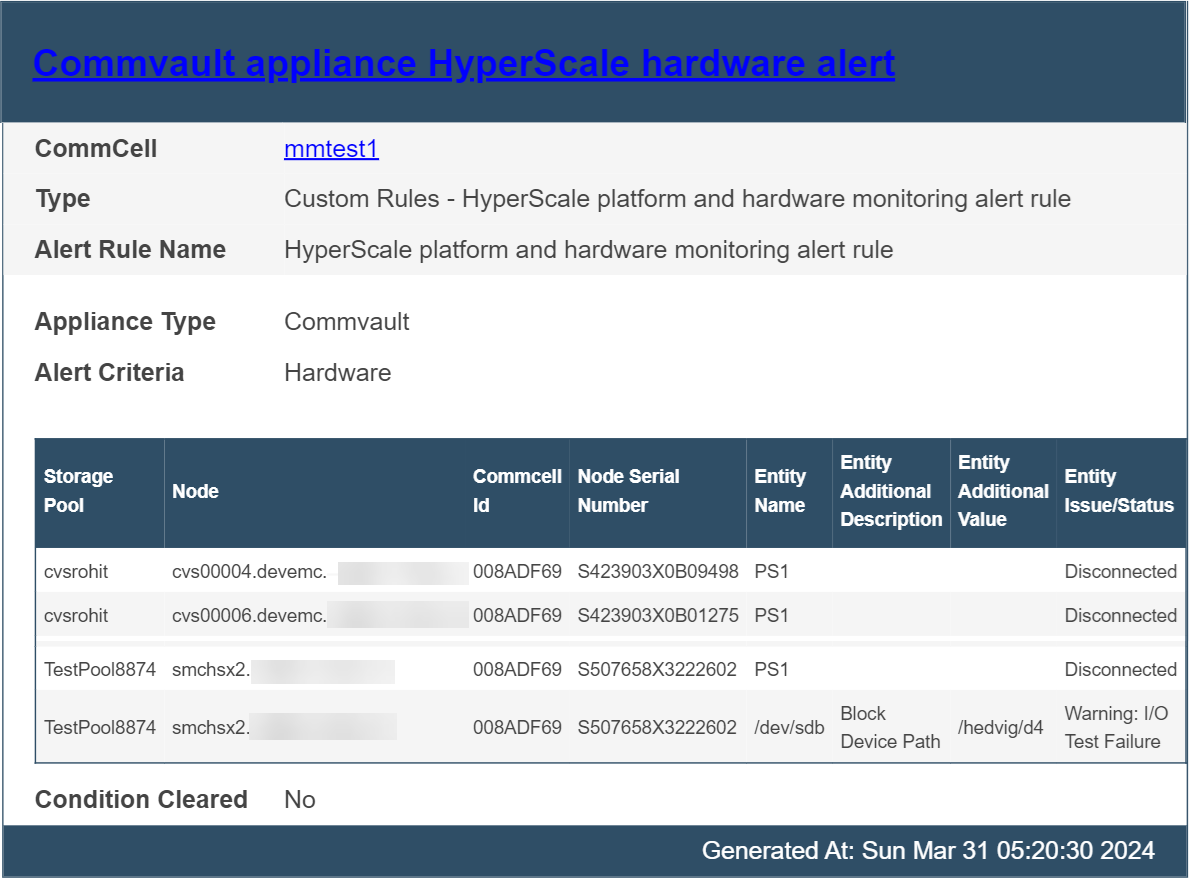
The software monitors the SMART status of each drive during every health check cycle. If predictive failures are detected—such as uncorrectable read/write counter errors or non-medium counter errors between health check cycles—a Warning: I/O Test Failure alert is generated.
The software continues monitoring the drive in subsequent health check cycles: - If the counter error values increase, the alert is sent again. - If there is no increase, the alert condition is cleared.
For guidance on proactive drive replacement, contact Commvault Support.
In predictive failure scenarios, the data drive status remains Ready in the hardware monitoring report in the Command Center.
Real Data Drive Failure
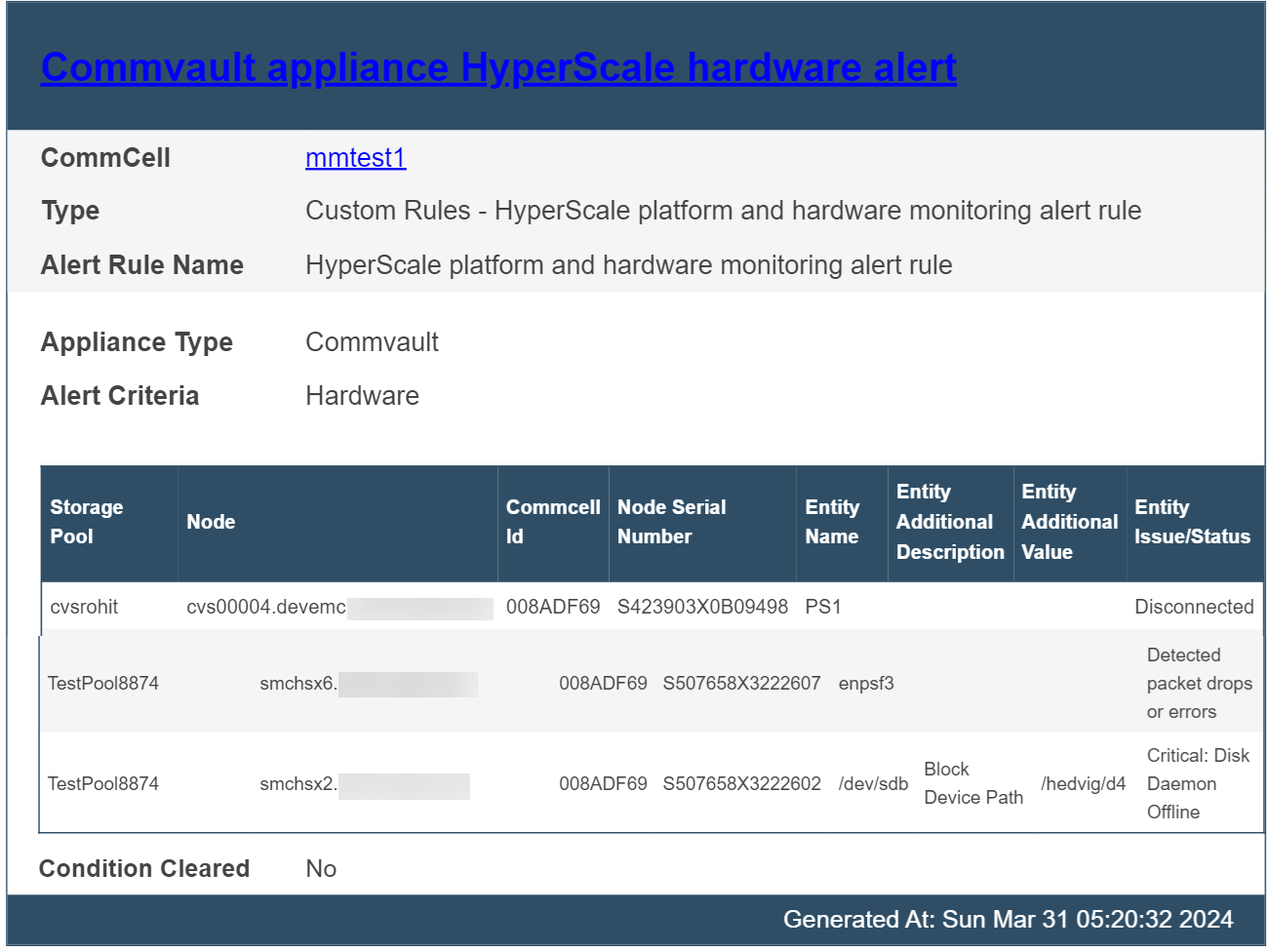
If a real data drive failure occurs, the software sends a Critical alert. You must contact Customer Support to initiate a replacement request.
In this case, the data drive status appears as Offline in the hardware monitoring report in the Command Center.
For drive replacement instructions, see
Replacing Disks in HyperScale X Appliance Nodes.
Sample Output
Predictive Drive Failure
Actual Drive Failure
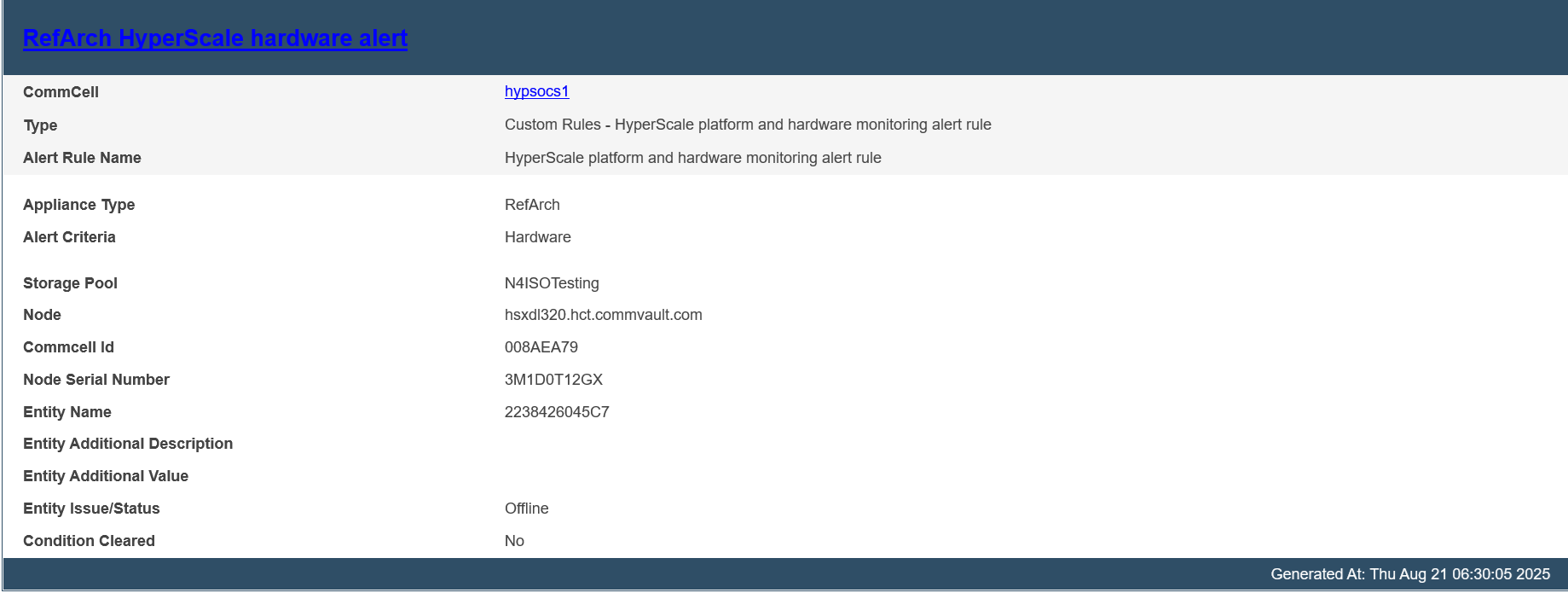
Drive Failure for Metadata NVMe SSD Drives
Dial Home for HyperScale and Appliance Hardware Alert
The Dial Home for HyperScale and Appliance Hardware Alert generates and sends a call-home notification to the administrator and to
hyperscalealerts@commvault.com when a hardware error or failure is detected in a disk drive, power supply, fan, or NIC, or when any of these components go offline.
This alert is enabled by default for all HyperScale appliances.
If the appliance is installed only as a MediaAgent, you must download the HyperScale Hardware Monitoring alert from the Commvault Store.
To download the alert, see
HyperScale Hardware Alerts.
You must configure this alert to send notifications to the cloud and to the HyperScale Appliance support team.
For instructions, see
Configuring the HyperScale Hardware Monitoring Alert.
On upgraded appliance nodes, this alert remains enabled. To use the new Commvault Appliance HyperScale Hardware alert for monitoring, you must first disable the dial-home alert and then enable the new alert.
Additional Alerts
The following additional alerts are recommended for monitoring HyperScale entities.
For instructions on creating alerts, see
Creating an Alert from the Alert Wizard.
-
Mount path went offline and Library went offline alerts
Enable these alerts to receive notifications when a mount path or library goes offline.
For more information, see
Predefined Alert Criteria – Device Status. -
MediaAgent went offline alert
Enable this alert to receive notifications when a MediaAgent goes offline.
For more information, see
Predefined Alert Criteria – MediaAgents. -
Insufficient storage alert
Enable this alert to receive notifications when disk space is insufficient.
For more information, see
Predefined Alert Criteria – Library Management. -
No DDB Space Reclamation from past N days alert
Enable this alert to generate notifications when DDB space reclamation has not occurred within the specified number of days.
For more information, see
DDB Data Verification.