The Commvault Appliance HyperScale Hardware alert is configured by default to record hardware errors in the CommCell Dashboard on cloud.commvault.com. You can view these alerts by opening the CommCell Alerts report.
You can also configure alerts to notify Commvault Maintenance Advantage Customer Support at
hyperscalealerts@commvault.com. To enable effective follow-up, you must configure the alert with appropriate contact information and additional details so that Commvault Customer Support can take the necessary action to resolve the hardware issue.
Notes
- Resolution of hardware issues is governed by your Hardware Service Level Agreement (SLA).
- Alerts received during weekends, holidays, or overnight hours may result in contact depending on your Maintenance Contract. Ensure that the specified contact is available at all times.
Procedure
Procedure
- From the Command Center navigation pane, go to Monitor > Alerts.
The Triggered alerts page appears.
- On the Alerts definitions tab, click the Commvault Appliance HyperScale Hardware alert.
The Commvault Appliance HyperScale Hardware page appears.
- Click Edit Template in the upper-right corner of the page.
The Edit Template page appears.
- Click View HTML
 .
.
The View HTML page appears.
-
Copy and paste the following code into the HTML:
<tr><td style="padding-top:7px;padding-right:0px;padding-bottom:7px;padding-left:20px;"><span style="color:#444444;font-family:sans-serif;font-size:medium;"><strong>Contact Information</strong></span> </td>
<td colspan="2"><span style="color:#444444;font-family:sans-serif;font-size:medium;">Type your contact information (email ID, Phone number) that the Customer Support should call or e-mail when alerts are received. </span> </td>
</tr>
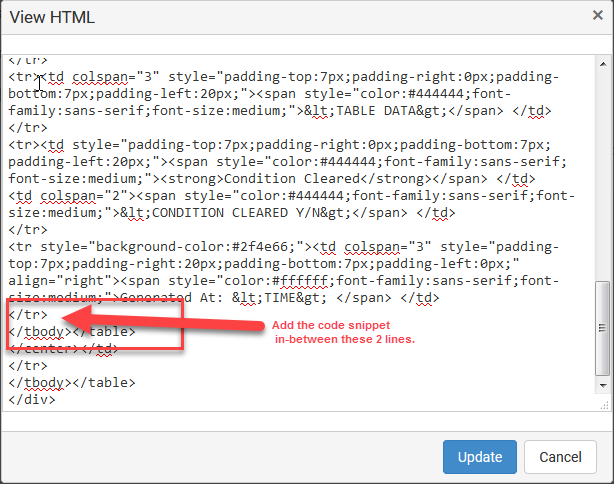
Add the code between the 2 lines shown in the following example:
-
Click Update.
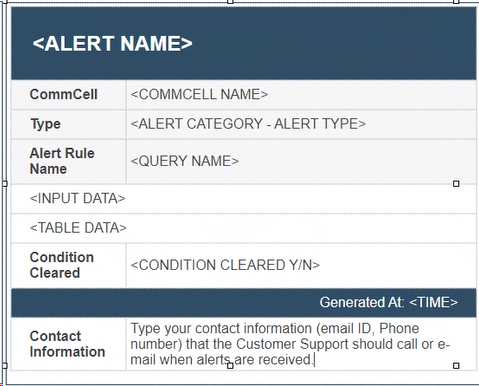
The Edit Template page displays the information as shown in the following example:
-
Enter the Contact Information that Commvault Maintenance Advantage Customer Support should use to contact your organization.
-
Click Save.