The Worldwide dashboard displays the consolidated view of data protection, infrastructure and health status, and security controls of the Commvault environment. It assesses readiness and ensures the backup data is secure, enabling faster recovery in the event of failures. The score helps you to identify and view the details of the statuses. You can view the overview and the detailed version of the reports in the Worldwide dashboard.
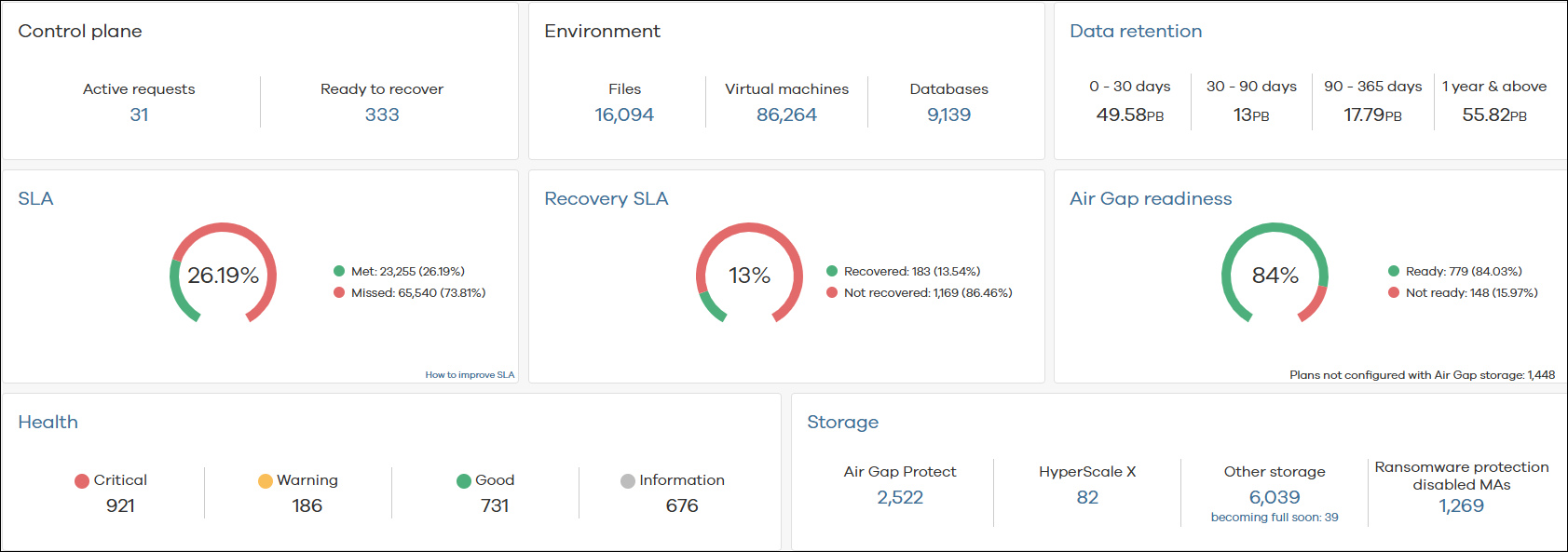
The following table includes descriptions for all of the tiles that are visible on the Worldwide dashboard.
|
Tile |
Description |
|---|---|
|
Control plane |
Displays the date of the latest successful recovery test from the latest completed job, as well as the date of the latest successful DR backup upload to the cloud. You can initiate various recovery operations and view details by clicking Start recovery test. For more information, see Cleanroom recovery for cyber resilience. |
|
Environment |
Displays the number of file servers, virtual machines, and databases in the ComCell environment. Click a specific entity number to view the status details. |
|
Data retention |
The amount of stored data that will be retained for the next 0–30 days, 30–90 days, 90–365 days, and one year and above. To view the Data Retention Report, click Data Retention. |
|
SLA |
Displays the percentage of all client computers that met or missed Service Level Agreement (SLA) at the last time data was collected. The formula used to calculate SLA is: Number of Clients that Met SLA / Total Number of Clients, at the time of data collection, regardless of the SLA time period configured for that particular client. To view the SLA Details Report, click SLA. |
|
Recovery SLA |
Displays the percentage of cleanroom recovery entities recovered in the last 30 days that met and missed the SLA. |
|
Air Gap readiness |
Displays the overall status of auxiliary copy jobs for air gap copies, considering data size to be copied, number of jobs to be copied, and days delayed. It also shows the number of copies not configured as air gap protect, and the oldest date of copy fallen behind. Click on the tile to view additional details. |
|
Health |
Displays the number of tiles that are in Good, Warning, or Critical state for each category of the Health Report. To view more detailed information about each category in the Health Report, click Health. |
|
Storage |
Displays the counts for Air Gap Protect, HyperScale X, and other storages (including disk, cloud, tape, etc.), as well as counts for any storage nearing maximum capacity within the next three months. It also highlights count for Ransomware Protection Disabled MediaAgent. Clicking on an entity count provides additional details. |