Restore Considerations
Notes Document iDataAgent supports the following restore operations:
-
Option to Overwrite data documents
-
Option to Overwrite design documents (For AIX and Solaris in-place restores, this option requires the data document to also be selected.)
-
Option to Overwrite database links
-
Option to Database links only
Before performing any restore procedures for this agent, review the following information:
-
Database objects whose names contain backslash characters ( \ ) are displayed in the Browse window with the backslash changed to a space character. This change is only for the sake of the browse and has no effect on the way data is actually backed up or restored.
-
If the Domino ID has a password associated with it, the Domino ID must be running during the restore operation.
-
You can restore the contents of the mailbox when mailbox has older name. Restoring data from both old data and new data is allowed to the new .nsf mail file.
-
You cannot restore a folder structure inside a .nsf file, although all the documents are restored.
Performing an In-Place Restore
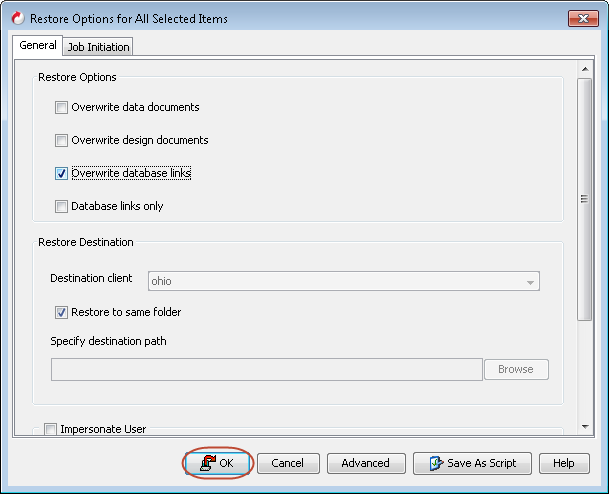
Follow the steps given below to restore data to perform an in-place recovery:
-
From the CommCell Browser, navigate to Client Computers | <Client> | Notes Document | <Partition>.
-
Right-click <Backupset> and click All Tasks | Browse and Restore.
-
Click View Content.
-
In the Browse window, click to select the backed up databases. Click Recover All Selected.
Note
In case you are restoring the database to a direct link, ensure that the directory link exists on the Domino.
-
Click OK.
Performing an Out-of-Place Restore
Restoring to a Different Folder on the Same Client
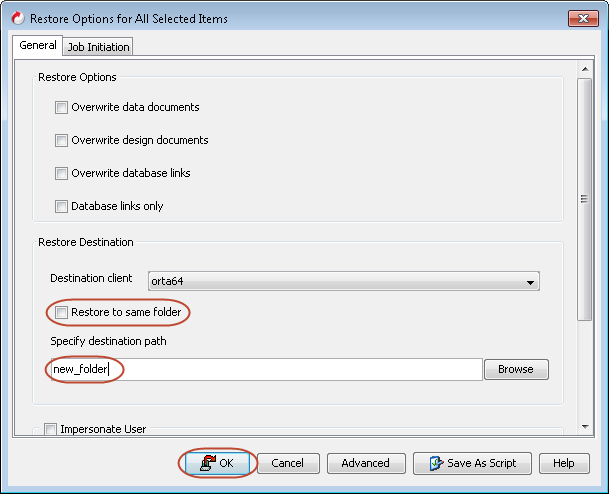
Follow the steps given below to restore data to a different folder on the same client from which data is backed up:
-
From the CommCell Browser, navigate to Client Computers | <Client> | Notes Document | <Partition>.
-
Right-click <Backupset> and click All Tasks | Browse and Restore.
-
Click View Content.
-
In the Browse window, click to select the backed up databases. Click Recover All Selected.
-
Clear the Recover to same folder check box.
-
In the Specify destination path, type the folder name.
Note
To avoid Replication ID conflicts, ensure that the destination path is outside the Notes Data Path.
-
Click OK.
Restoring to a Different Client
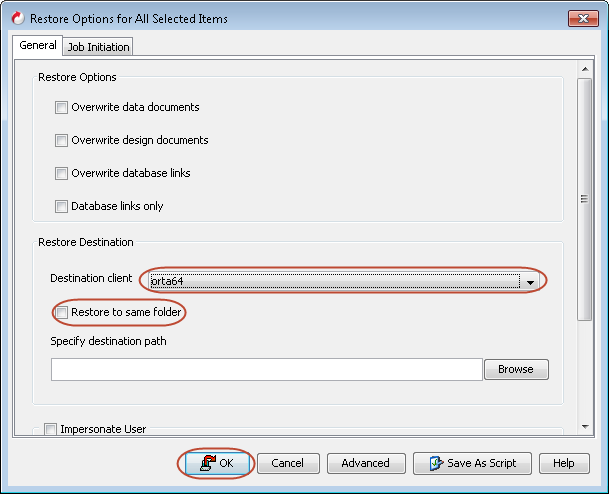
Follow the steps given below to restore data to a different folder on the same client from which data is backed up:
-
From the CommCell Browser, navigate to Client Computers | <Client> | Notes Document | <Partition>.
-
Right-click <Backupset> and click All Tasks | Browse and Restore.
-
Click View Content.
-
In the Browse window, click to select the backed up databases. Click Recover All Selected.
-
Clear the Recover to same folder check box.
-
In the Destination Client list, select the name of client computer.
-
Click OK.
Restoring to Network Path
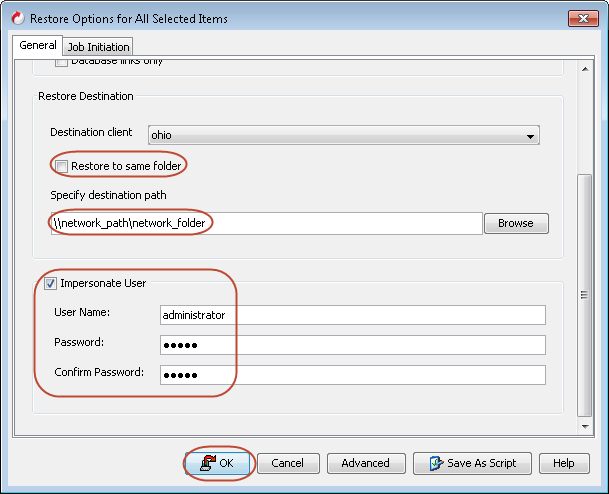
Follow the steps below to restore data to any network path, (supported on Windows):
-
From the CommCell Browser, navigate to Client Computers | <Client> | Notes Document | <Partition>.
-
Right-click <Backupset> and click All Tasks | Browse and Restore.
-
Click View Content.
-
In the Browse window, click to select the backed up databases. Click Recover All Selected.
-
Clear the Recover to same folder check box.
-
In the Specify Destination Path, type the network path.
-
Check the Impersonate User checkbox.
-
Type the credentials for the remote location.
-
Click OK.
Performing Point-in-Time Restore Operations across Backup Cycles and Subclients
You can browse and recover data spanning across multiple subclients. Browsing and recovering data across subclients within a backup set allows you to recover data from the mailboxes that have been moved from one subclient to another.
Follow the steps given below to browse and restore data spanning multiple subclients:
-
Install the MediaAgent on the CommServe computer.
-
From the CommCell Browser, navigate to Client Computers | <Client> | Notes Document | <Partition>.
-
Right-click <Backupset> and click All Tasks | Browse and Restore.
-
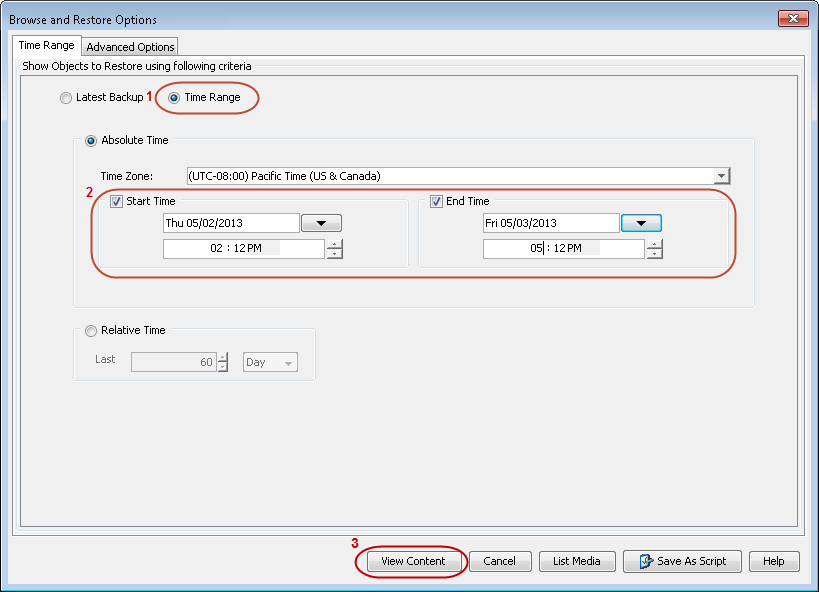
Select the Time Range option.
-
Select the Time Zone, enter the Start Date and time and the End Date and time.
-
Click View Content.
-
Expand the <Subclient> and select the required database. Its entire contents will be automatically selected in the right pane.
-
Click Recover All Selected.
-
From the General tab, select suitable options to locate the desired destination.
-
Click the Job Initiation tab.
-
Select Immediate to run the job immediately.
-
Click OK.
You can monitor the progress of the restore job in the Job Controller.
Scheduling Message Restore
-
From the CommCell Browser, navigate to Client Computers | <Client> | Notes Document | <Partition>.
-
Right-click <Backupset> and click All Tasks | Browse and Restore.
-
Click View Content.
-
Expand the <Subclient> and select the required database. Its entire contents will be automatically selected in the right pane.
-
Click Recover All Selected.
-
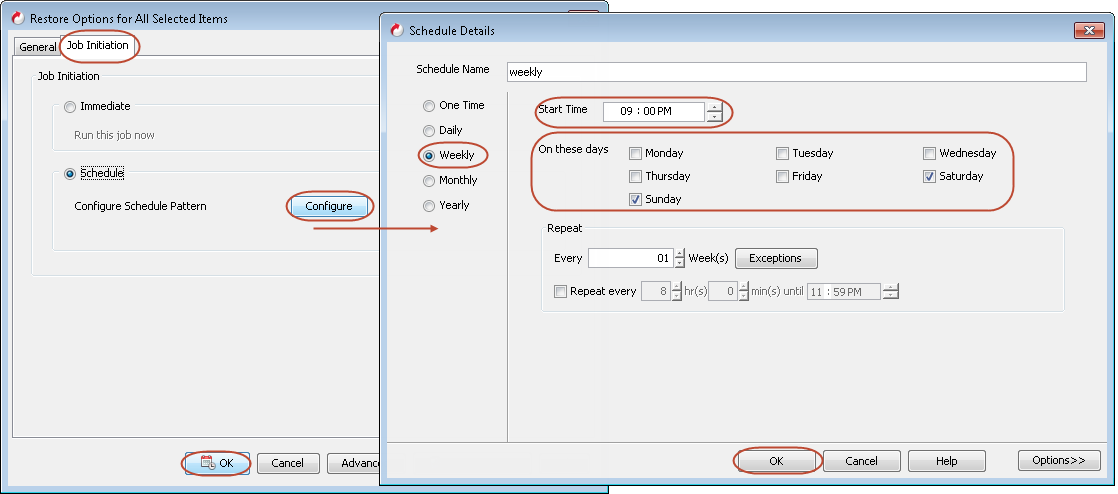
Click the Job Initiation tab and click Schedule.
-
Click Configure.
-
From the Schedule Details dialog box, select the appropriate scheduling options. For example:
-
Click Weekly.
-
Check the days you want the run the restore job.
-
Change the Start Time to 9:00 PM.
-
Click OK.
-
-
Click OK.
The restore job will start as per the schedule set.
Managing Restore Jobs
Once you initiate the restore operation, a restore job is generated in the Job Controller. Jobs can be managed in a number of ways. The following sections provide information on the different job management options available:
Restarting Jobs
Jobs that fail to complete successfully are automatically restarted based on the job restartability configuration set in the Control Panel. Keep in mind that changes made to this configuration will affect all jobs in the entire CommCell.
To Configure the job restartability for a specific job, you can modify the retry settings for the job. This will override the setting in the Control Panel. It is also possible to override the default CommServe configuration for individual jobs by configuring retry settings when initiating the job. This configuration, however, will apply only to the specific job.
Note
Restore jobs for this Agent are resumed from the point-of-failure.
Configure Job Restartability at the CommServe Level
-
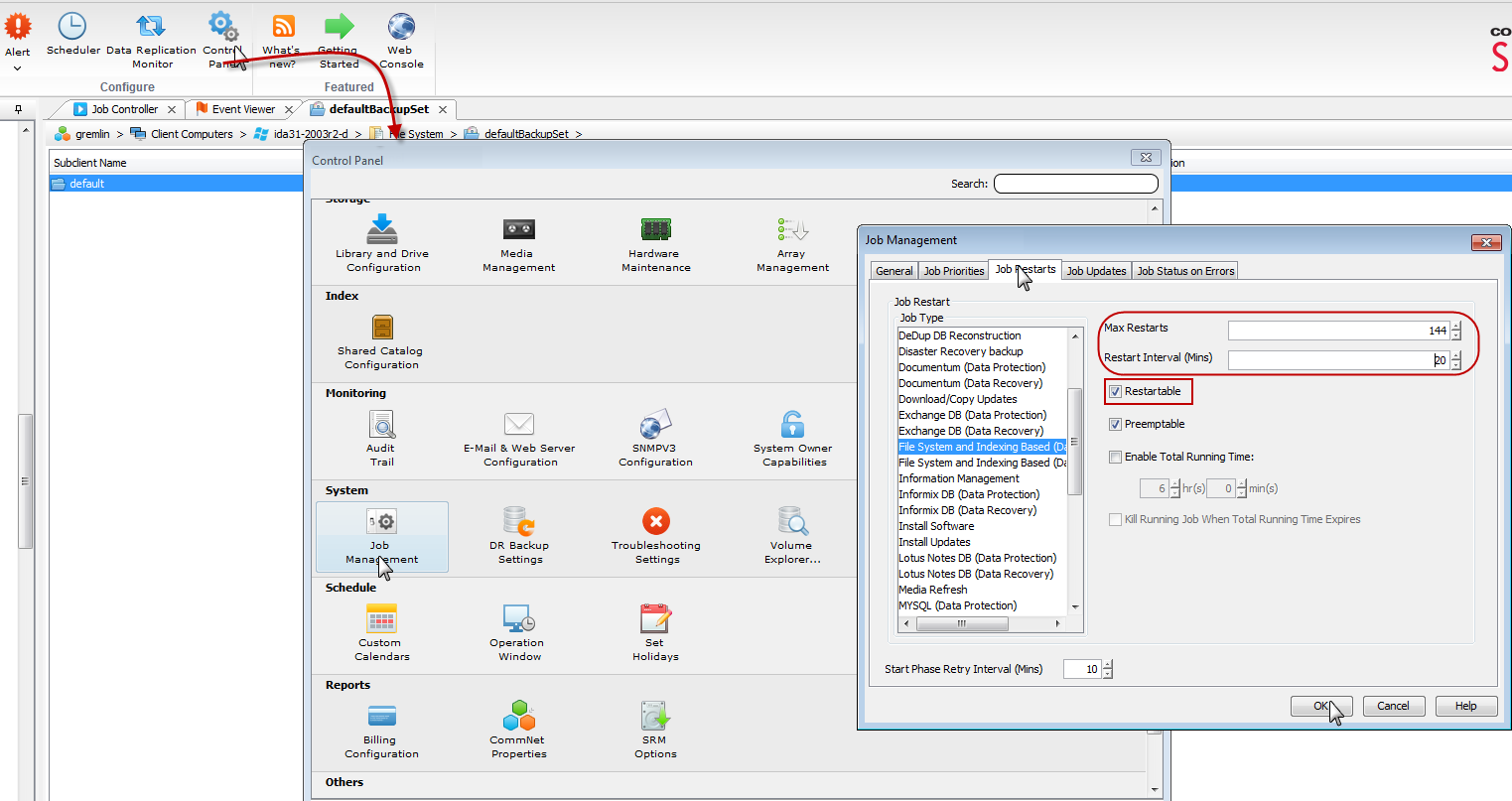
From the CommCell Console ribbon, click the Home tab, and then click Control Panel.
-
In the Data section, click Job Management.
The Job Management dialog box is displayed.
-
On the Job Restarts tab, select the job information.
-
In the Job Type box, select the job that you want set the restart capability for (for example, for DB2 backup jobs, select DB2 Data Protection).
-
Select the Restartable check box.
-
Optional: to change the maximum number of times that the Job Manager tries to restart a job, in the Max Restarts box, select the number of times.
-
Optional: to change the time interval between attempts for the Job Manager to restart the job, in the Restart Interval (Mins) box, select the number of minutes.
-
-
Click OK.
Controlling Jobs
The following controls are available for running jobs in the Job Controller window:
|
Suspend |
Temporarily stops a job. A suspended job is not terminated; it can be restarted at a later time. |
|
Resume |
Resumes a job and returns the status to Waiting, Pending, Queued, or Running. The status depends on the availability of resources, the state of the Operation Windows, or the Activity Control setting. |
|
Kill |
Terminates a job. |
Suspending a Job
-
From the Job Controller of the CommCell Console, right-click the job and select Suspend.
-
The job status may change to Suspend Pending for a few moments while the operation completes. The job status then changes to Suspended.
Resuming a Job
-
From the Job Controller of the CommCell Console, right-click the job and select Resume.
-
As the Job Manager attempts to restart the job, the job status changes to Waiting, Pending, or Running.
Killing a Job
-
From the Job Controller of the CommCell Console, right-click the job and select Kill.
-
Click Yes when the confirmation prompt appears if you are sure you want to kill the job. The job status may change to Kill Pending for a few moments while the operation completes. Once completed, the job status will change to Killed and it will be removed from the Job Controller window after five minutes.
Additional Restore Options
Several additional options are available to further refine your restore operations. The following table describes these options, as well as the steps to implement them.
Be sure to read the overview material referenced for each feature prior to using them.
|
Option |
Description |
Related Topic |
|
Startup Options |
The Startup Options are used by the Job Manager to set priority for resource allocation. This is useful to give higher priority to certain jobs. You can set the priority as follows:
|
Refer to Job Priority and Priority Precedence. |
|
Copy Precedence |
By default, the system retrieves data from the storage policy copy with the lowest copy precedence. If the data was pruned from the primary copy, the system automatically retrieves data from the other copies of the storage policy in the lowest copy precedence to highest copy precedence order. Once the data is found, it is retrieved, and no further copies are checked. You can retrieve data from a specific storage policy copy (Synchronous Copy or Selective Copy). If data does not exist in the specified copy, the data retrieve operation fails even if the data exists in another copy of the same storage policy. Follow the steps given below to retrieve the data from a specific storage policy copy:
|
Refer to Recovering Data From Copies. |
|
Data Path Options |
The data recovery operations use a default Library, MediaAgent, Drive Pool, and Drive as the Data Path. You can use this option to change the data path if the default data path is not available. Follow the steps given below to change the default data path:
|
Refer to Change Data Path. |
|
Alerts |
This option enables users or user groups to get automatic notification on the status of the data recovery job. Follow the steps given below to set up the criteria to raise notifications/alerts:
|
Refer to Alerts and Notifications. |
|
Command Line Restores |
Command Line Interface enables you to perform backups or restore from the command line. The commands can be executed from the command line or can be integrated into scripts. You can also generate command line scripts for specific operations from the CommCell Browser using the Save As Script option. |
Refer to Command Line. |
|
CommCell Readiness Report |
The CommCell Readiness Report provides you with vital information such as connectivity and readiness of the Client, MediaAgent, and CommServe. It is useful to run this report before performing a backup or a recovery operation. Follow the steps given below to generate the report:
|
Refer to CommCell Readiness Report. |
|
Restore Job Summary Report |
The Restore Job Summary Report provides you with information about all the data recovery jobs that are run in last 24 hours for a specific client and agent. You can get information such as failure reason, failed objects, job options, and so on. It is useful to run this report after performing the restore. Follow the steps given below to generate the report:
|
Refer to Restore Job Summary Report. |