List box lists allow the user to select an item from list of data that you configure.
Example
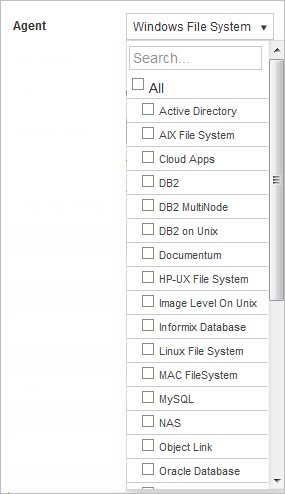
This image is an example of a list box input in a report:
Settings
To display a list box in your report, configure the following settings on the Edit Report Input dialog box:
|
Setting |
Selection |
|---|---|
|
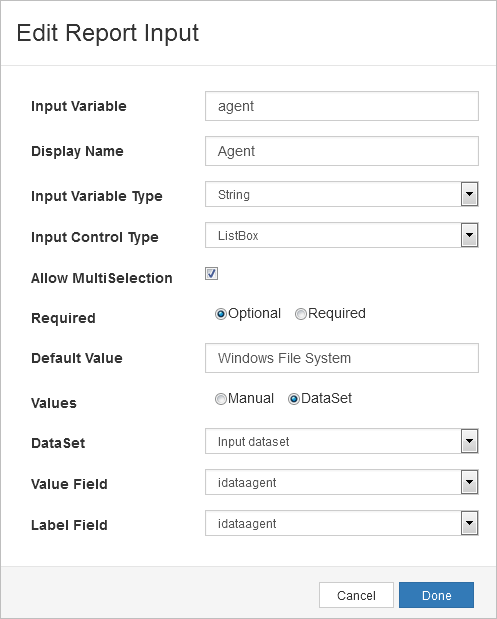
Input Variable |
The name you will use as a parameter in the report query. |
|
Display Name |
Then name that will appear as a label for the input in the report. |
|
Input Variable Type |
String |
|
Input Control Type |
ListBox |
|
Allow MultiSelection |
Selected |
|
Required |
Optional |
|
Default Value |
Windows File System |
|
Values |
DataSet |
|
DataSet |
The data set you created for this input |
|
Value Field |
idataagent |
|
Label Field |
idataagent |
The following image is an example of the configured settings.
Example Queries
You can add a list with multiple values that has a default value selected or a list with no default value selected.
Lists with a Default Value
If you configured multiselection for a list box, then configure the associated parameter as Multi. Configure the following settings on the Edit Data Set dialog box to make a list with a default value selected:
|
Setting |
Selection |
|---|---|
|
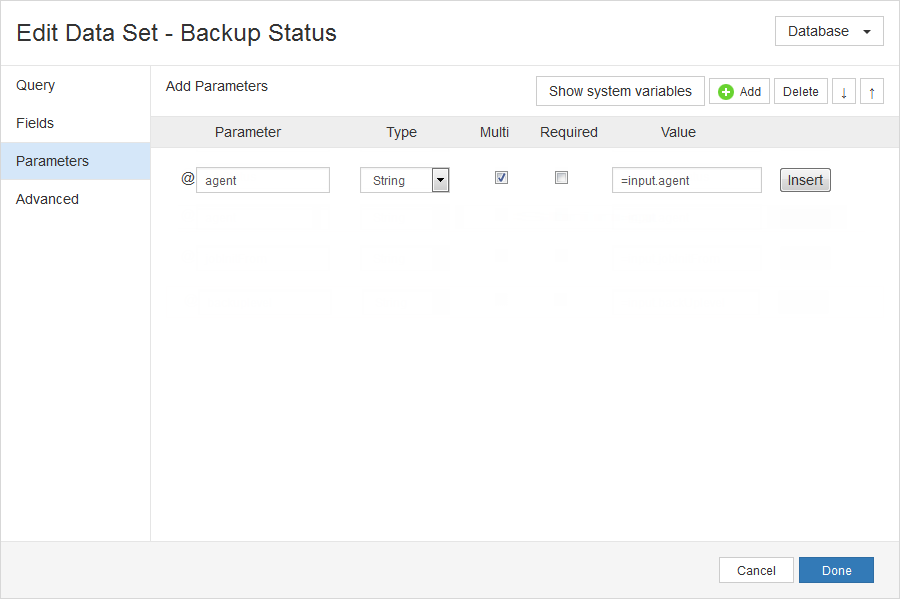
Parameter |
Input variable that you configured in the Edit Report Input dialog box. |
|
Type |
String |
|
Multi |
Selected |
|
Required |
Cleared |
|
Value |
=input.agent |
The following image is an example of the configured settings.
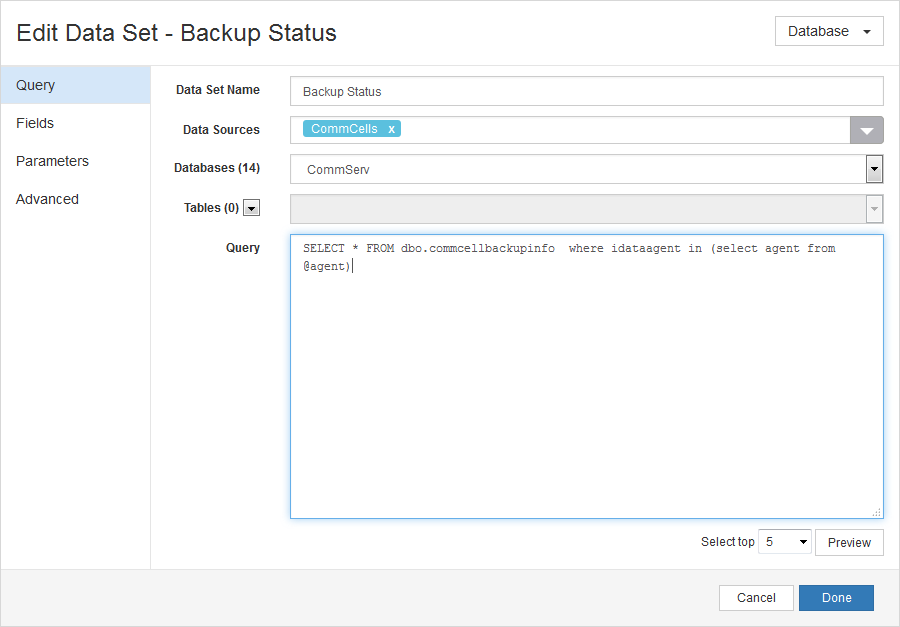
Then, add the parameter as part of a where clause in the report query in the Query box on the Edit Data Set dialog box.
where idataagent in (select agent from @agent)The following image is an example of the configured settings.
Lists with No Default Value
If you configured multiselection for a list box, then configure the associated parameter as Multi. Configure the following settings on the Edit Data Set dialog box to make a list with no default value selected:
|
Setting |
Selection |
|---|---|
|
Parameter |
Input variable that you configured in the Edit Report Input dialog box. |
|
Type |
String |
|
Multi |
Selected |
|
Required |
Cleared |
|
Value |
=input.agent |
The following image is an example of the configured settings.
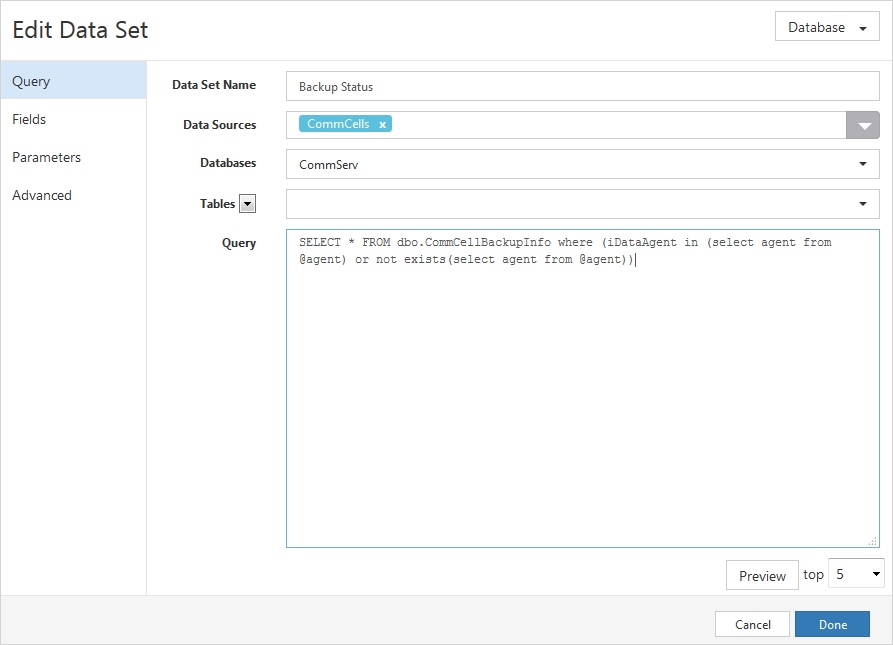
Then, add the parameter as part of a where clause in the report query in the Query box on the Edit Data Set dialog box.
where (iDataAgent in (select agent from @agent) or not exists(select agent from @agent))The following image is an example of the configured settings.
Associated Input Variables
-
Boolean
-
Decimal
-
Integer
-
String