You can configure a workflow for the Vault Tracker policies, to obtain a list of imported, exported and media in the mail slot in a CSV format. This workflow can be configured for multiple Vault Tracker policies. Once the workflow is configured, it runs automatically whenever the Vault Tracker policy is executed.
About This Task
The following .CSV files are saved in the CommServe computer, in a location specified while setting up the workflow. The following files are created and appended every time media is imported, exported or when media is added in the mail slot:
-
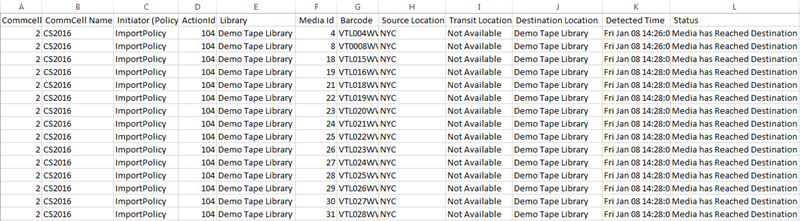
Import media - ImportMediaList.csv
-
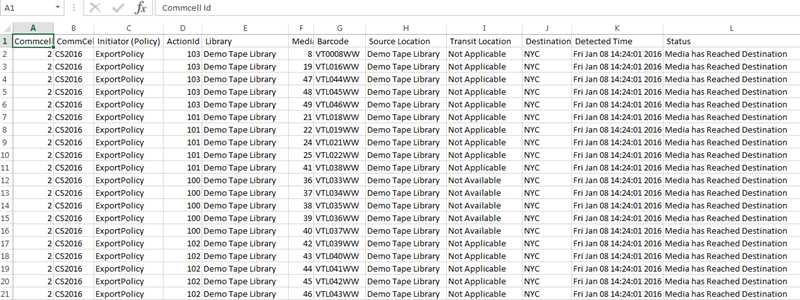
Export media - ExportMediaList.csv
-
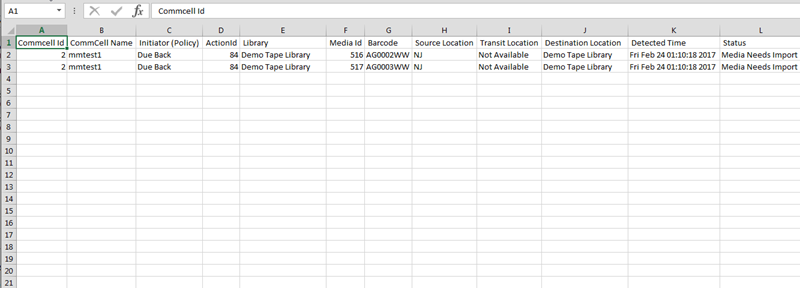
Media in Mail Slots - MailSlotList.csv
To generate this list, enable the Prevent Auto import of Media from mail slot option from Library Properties - Advanced tab.
Before You Begin
Ensure that you have a Vault Tracker policy configured to import and export media. For more information, seeCreating a Vault Tracker Policy.
Procedure
-
Download and VaultTracker_ExportMediaListasCSV.xml from the Commvault Store. For more information on downloading the workflow, see Downloading Workflows from the Commvault Store.
If you cannot directly connect to the Commvault Store, you can download the XML from the Download Center, and import the workflow from the CommCell Console as described in Workflow Operations - Import a Workflow.
-
Deploy the workflow from the CommCell Browser.
For more information, see Deploying a Workflow.
-
Add an alert to run the VaultTracker_ExportMediaListasCSV.xml workflow to get the list of imported or exported media as a CSV format as follows:
-
From the CommCell Console ribbon, click Home and then click Alert.
-
From the Alerts dialog box, click Add.
-
Type the alert name in the Display Name box.
-
Select Media Management from the Category pane, and select VaultTracker from the Type pane, and then click Next.
-
Select the appropriate Vault Tracker policies, and then click Next.
-
On the Threshold and Notification Criteria Selection window, select the following options, and then click Next:
-
Job Failed
-
Media Reached Destination
-
Media Handling Required
Note: Make sure to clear all the other check boxes.
-
-
On the Notification Type(s) Selection window enter the following details:
-
Click the Workflow tab.
-
Click Select [Workflow] for notification.
-
From the Workflow to run list, select VaultTracker_ExportMediaListasCSV workflow.
-
Double-click the SaveToLocation field and type the location where you want to save the CSV file.
Note: The SaveToLocation location is a location on the CommServe computer.
-
Press Enter.
-
Click Next.
-
-
If you have selected email notification, on the Users and User Groups Selection window, select the users who should receive the email alert, and click Next.
-
Verify the Summary and click Finish.
-
Result
Whenever the Vault Tracker Policies associated in the Alert are successfully executed and completed, the following activities will be automatically triggered:
-
Depending on the Notification Type established in the Alert, an alert will be generated whenever media is successfully imported, exported or moved to the mail slot from the selected libraries.
-
The media imported / exported /in mail slot list will be appended to the
ImportMediaList.csv,ExportMediaList.csvorMailSlotList.csvand saved in location specified in the alert in the CommServe computer
Example 1 - ImportMediaList.csv
Example 2 - ExportMediaList.csv
Example 3 - MailSlotList.csv