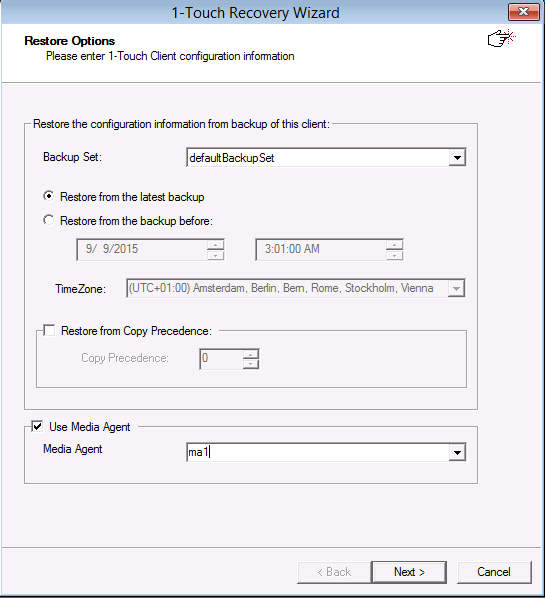
By default, the latest data and configuration of the client computer, backed by the default backup set, will be used to restore the client computer. However, you can restore the client using the data and client configuration backed up at any point-in-time.
You can create a backupset to backup data and configuration for the 1-Touch recovery. This will be useful when you want to backup only selected data on the client computer and restore it during 1-Touch recovery.
Limitation: When you run 1-Touch Recovery for a backup set, you cannot restore data backed up using block-level backups. To restore block level data, you must perform a separate restore operation.
Interactive Restore
Follow the steps given below to restore the client configuration and data backed by a user defined backupset:
-
Use the 1-Touch Live CD to boot the client.
-
In the Language Selection Dialog dialog box, select a language from the list. To use the same language for the keyboard, click Use default keyboard for the selected language check box and click OK.
-
Click Cancel to start the interactive restore
-
Click Next.
-
Click Yes if all disk devices are detected.
-
Enter the CommServe Host Name and IP Address.
Click Get Clients to get the list of all file system clients on which the system state backups have been performed.
In the Client Name list , select a client for which you want to perform the Interactive Restore.
Click Next.
-
Click Next.
-
By default, the client configuration, backed up by default backupset in the most recent backup, will be used to restore the client.
Select a user defined backupset from the BackupSet list.
Click Next.
-
Perform the Interactive Restore.