As an aggregator, you can view usage reports for your direct tenants, as well as for tenants of your sub-MSPs.
Procedure
-
From the Global Command Center, click Usage.
The Usage summary page appears.
-
In the Sub MSPs list, either select Directly Managed Accounts to access usage reports for your direct tenants, or select one of your sub-MSPs.
The Companies list will populate based on your selection.
-
In the Companies list, select the company that you want to view usage details for.
The usage summary for that company appears, as follows:
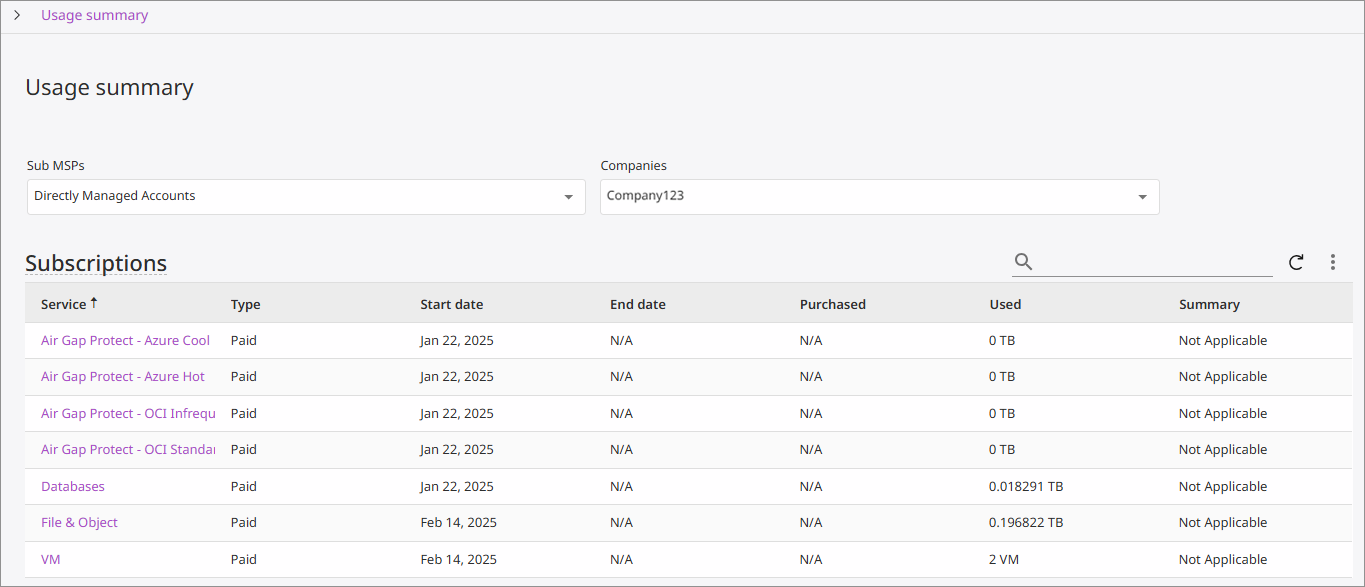
Subscription usage differs depending on the service, as follows:
- For storage, Database, Dynamics 365, File & Object, and File & Object Archive, usage is calculated according to the amount of data used.
- For Active Directory, Endpoint, and Microsoft 365, usage is calculated according to the number of users.
-
To view usage details for a service for that company, click the name in the Service column.
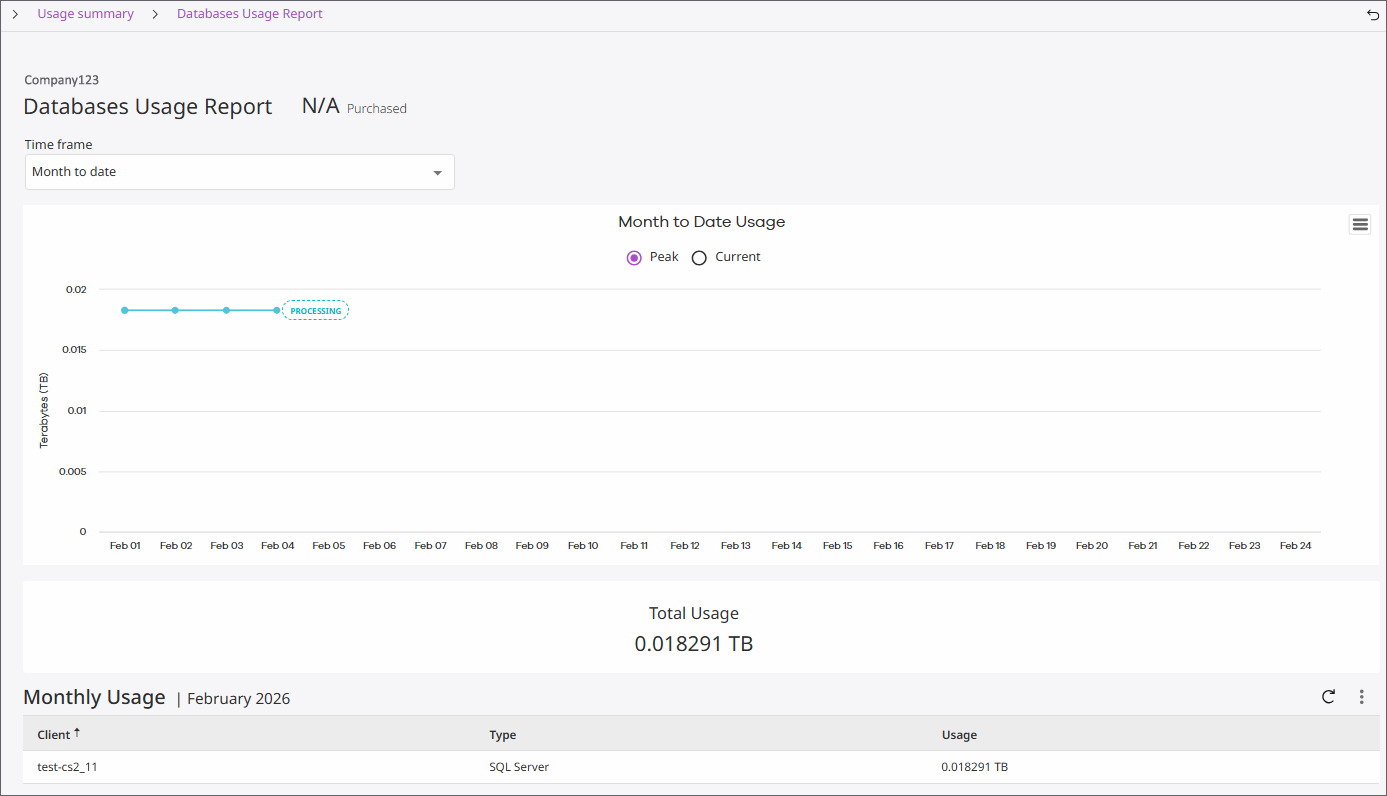
The usage report for the service appears. For example, the Databases usage report is shown below:
-
Use the Time frame list to update the report for the selected time range.
-
Select one of the following options for the Month to Date Usage chart:
-
Current: Displays the exact number of users protected as of the previous day. For example, if you view the chart on March 20, you can view data up to March 19.
-
Peak: Displays the largest number of unique users protected up to the previous day.
-