HyperScale X nodes can be refreshed when there are hardware failures in an existing node in the storage pool, such as disk issues or corrupted operating system. When a node is refreshed, only the drive containing the operating system, which can be reinstalled and rebuilt, will be recovered.
During the refresh operation, select the Preserve Drives option to retain the data drives and drives containing the Deduplication Database (DDB) and Index Cache.
Support
- Nodes with MediaAgents pointing to an external CommServe can be recovered. (Nodes setup with both the CommServe and MediaAgents not supported.)
Before You Begin
-
Enable root access, if root access is disabled in the storage pool.
For more information, see Enabling or Disabling Root Access.
-
Verify that your environment meets the requirements that are mentioned in the Existing Node Requirements section in Prerequisites for Adding Nodes to an Existing HyperScale X Storage Pool.
-
The Managed Service Provider (MSP) administrator or the tenant administrator performing the installation must obtain the authorization code.
For instructions on activating the authorization code, see User Administration and Security.
Procedure
-
Login to the Windows based computer.
-
Download the latest HyperScale Appliance ISO <Version_Number> (for example, HyperScale ISO 2.2) from Commvault Store.
-
Access the node using the KVM management console in your environment.
-
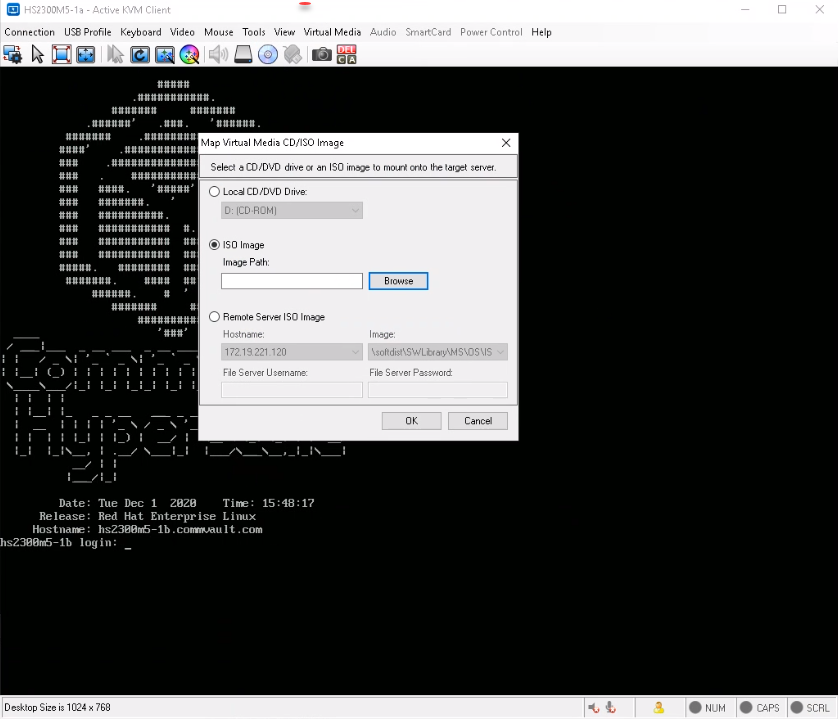
Map the downloaded ISO image as a virtual media from the KVM Management console.
Click here to view a sample image.
-
Reboot the node using the virtual media as follows.
-
Login to the node as root. (Press <Alt> + <Ctrl> + <F2> if the login prompt is not displayed.)
-
Type
reboot. -
During the boot sequence press <F12> when the following message is displayed. (This message will be displayed briefly for a few moments only during the boot sequence.)
Press F2 to enter Setup or <F12> to enter Boot Menu. -
Select the virtual media as the boot device and press <Enter>.
The Commvault HyperScale Install will be started.
-
-
The HyperScale Configuration Detected screen is displayed.
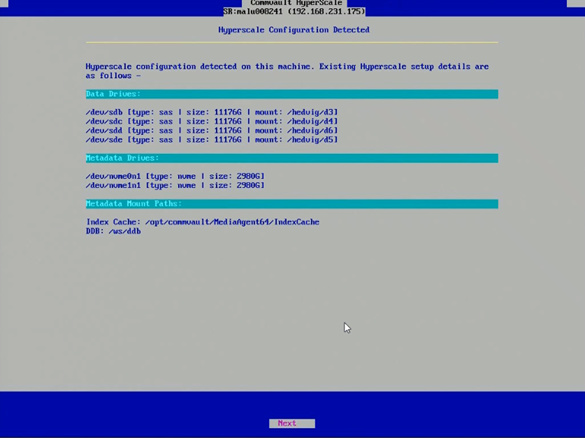
Choose Next.
-
The Preserve Data screen is displayed.
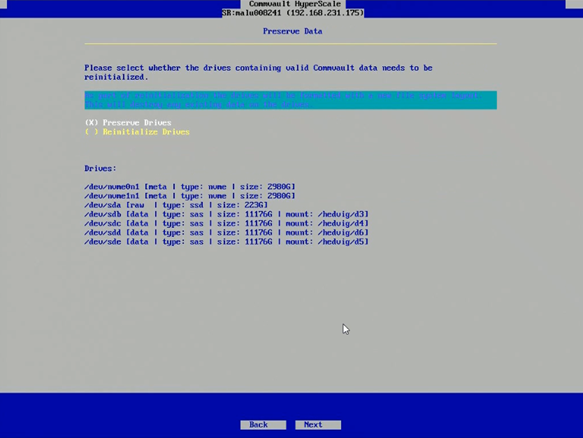
Choose the Preserve Drives option and then click Next.
The installation process will be started. This process will take some time to complete.
The following message will be displayed once the installation is complete.
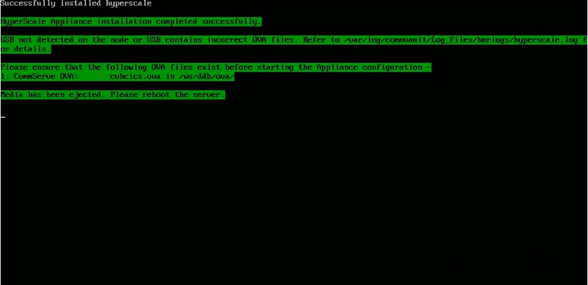
-
Reboot the node.
-
After the reboot, login using the following default credentials:
Login: root
Password: cvadmin
(Press <Alt> + <Ctrl> + <F2> if the login prompt is not displayed.)
-
Verify that the contents of
/etc/hostsfolder is identical to the other nodes in the cluster, using the following command:cat /etc/hosts -
Run the following commands on one of the existing cluster nodes other than the reimaged node:
cd /opt/commvault/MediaAgent64/task_manager
./cvmanager.py -t Restore_Node
The following message appears:
INFO : Initializing HyperScale Task Manager INFO : Commvault HyperScale Task Manager Initialized. Hostname of the node to restore: -
Enter the hostname of the node that you want to restore.
The following message appears:
Root password of existing cluster: [Re-Enter to Confirm] - Root password of existing cluster: -
Enter the root password which was added during the initial Hyperscale node configuration. (This root password would be the same root password used in the other nodes.)
The following message appears:
Are you registering with SaaS (y/n): -
Enter n.
The following message appears:
CommServe fully qualified hostname: -
Enter the name (FQDN) of the CommServe computer.
The following messages appear:
Enter the auth code for registration:Enter the auth code.
-
The following message appears:
Enter the hostname of the node that you want to restore. The restore process is initiated and the messages appear about the progress of the restore process.Hostname of the node to restore: -
Verify the status of the refreshed node in the storage pool as follows:
-
The HyperScale X page appears.
-
Verify the Status column for the MediaAgent that you have refreshed.
The status appears as Media agent under Maintenance when the refresh operation is in progress.
Once the refresh is completed the Status column for the MediaAgent will appear as Online.
-
Verify that the node is refreshed by clicking the node.
The <node> page is displayed. Check the following details:
-
Server Information area
-
Disk Status under the Disks area
-
-
-
Enable ransomware on the refreshed node as described in Enabling Ransomware Protection for a HyperScale MediaAgent.
What to Do Next
-
Install the operating system updates on the refreshed node to synchronize the operating system it with the other nodes in the cluster.
-
Disable root access, if root access was originally disabled in the storage pool. For more information, see Enabling or Disabling Root Access.