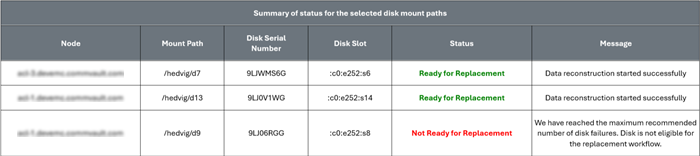
You can proactively disable and replace faulty disks that are still online on a HyperScale X node by using the HSX Proactive Disk Replacement Helper workflow.
The workflow supports proactive disk maintenance by safely disabling eligible disks, and initiating data reconstruction before the physical disk replacement occurs. Proactively disabling disks for replacement helps minimize unplanned outages, improve operational efficiency, and maintain data resiliency.
Before You Begin
Verify that you have the required permissions to launch the workflow.
Procedure
-
Obtain the HSX Proactive Disk Replacement Helper workflow from the Commvault Store. For more information about downloading the workflow, see Downloading and Updating Workflows from Commvault Store
-
From the Command Center navigation pane, go to Manage > Workflows.
-
Launch the HSX Proactive Disk Replacement Helper workflow.
The HSX Proactive Disk Replacement Helper window opens. Use this workflow only for known faulty disks that are currently online. -
Click OK.
-
In the Select the HSX Storage pool with faulty disks box, select the storage pool that contains the disks to be replaced.
-
To validate whether the disks are eligible for replacement, enable the Validation Only toggle.
-
In the Email Notification Recipients box, enter the email addresses of users you want to notify about the disk replacement, and then click OK.
-
In the Select the HSX Storage nodes with faulty disks box, select the HyperScale X nodes that contain the disks to be replaced, and then click OK.
-
In the Select the Faulty disk mount paths box, select the mount paths for the faulty disks on each selected node, and then click OK.
-
Review your selections, and then click OK.
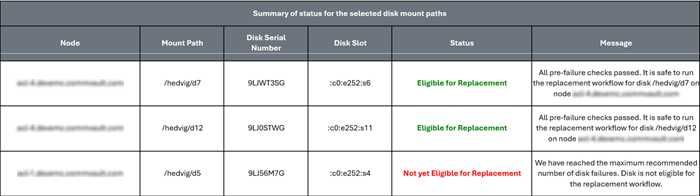
A workflow job is triggered. When the job completes, an email containing the validation results for the selected disks is sent to administrators and the specified recipients. Disks that cannot be disabled are marked with the status Not Yet Eligible for Replacement.Caution
Running the workflow in Validation Only mode does not mark the disk offline. To mark the disk for replacement, re-run the workflow with the Validation Only toggle disabled.
-
After validation completes, to disable the eligible disks, rerun the workflow with the Validation Only toggle disabled. The workflow disables the validated disks and prepares them for replacement. An email notification confirming that the disks are ready for replacement is sent to administrators and the specified recipients.