Create a recovery group that specifies the resources to recover. For application-aware recovery, include the VM and its associated databases or applications so the VM is recovered first, followed by the application data.
Tip
You can create recovery groups that include all the resources for an application, to ensure the resources are recovered in the correct sequence and to the same point in time.
Start the recovery group wizard
-
In the Command Center navigation pane, go to Secure > Cleanroom recovery.
-
On the Recovery groups tab, in the upper-right area of the page, click Add recovery group.
Resource selection page
Note
When you select an Active Directory forest, Commvault adds the AD forest recovery runbook as a resource to the cleanroom runbook. When you execute the cleanroom runbook, Commvault executes the AD forest recovery runbook when it reaches that resource in the cleanroom runbook.
When selecting resources:
- Include VMs and their associated applications or databases.
- By default, selecting a VM includes its discovered applications or databases.
- Expand the VM to review its nested applications or databases and clear any application you do not want to recover.
- Make sure related components are grouped together for coordinated recovery.
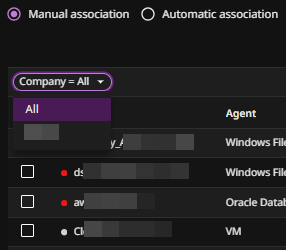
Manual association
With Manual association, you simply select the resources.
To view only resources that belong to a certain company, select the company.
Automatic association
Select a client scope, and then specify rules and/or rule groups.
-
For Client scope, select the primary criteria—either company, user, or user group.
Example
Select all resources that belong to the Domain1\end_users user group:
- Client scope: Select Clients of user group.
- Company: Enter Domain1\end_users.
-
Click Add rule, and then specify the rule criteria.
Example
Select all resources that are associated with a plan that contains Finance:
- Select rule type: Select Clients associated with plan.
- Which matches with: Select contains.
- Value: Enter Finance.
Summary page
The Summary page shows the resources that are associated with the recovery group.
Verify that:
- All required VMs are included
- Associated applications or databases are included
- Any applications or databases you do not want to recover have been cleared before you create the runbook
To proceed with creating a runbook, click Create & start runbook creation.