You can configure a tape Network Storage Pool from the CommCell Console or by using the Command Line Interface. For more information on configuring configuring a Tape Network Storage Pool using the command line, see Creating the Global Secondary Copy Policy Using the Command Line Interface.
Gather Tape Storage Pool Data
|
Required Information |
Details |
|---|---|
|
Storage Policy Name |
Name of the storage pool. For example: storagepool-tape001 |
|
Library Name |
Name of the available tape library with which you want to associate the storage pool. |
|
MediaAgent |
MediaAgent associated with the tape library. |
|
Drive Pool |
Drive Pool of the selected tape library. |
|
Scratch Pool |
Scratch Pool of the selected tape library. |
|
Number of data streams |
Number of device streams that will write the data on the library. |
|
Retention Criteria |
Number of cycles and days the data will be retained on the storage. |
Procedure
-
From the CommCell Browser, expand to Storage Resources > Storage Pools.
-
Right-click the Storage Pools and click Tape.
-
The Create New Storage Pool Wizard opens. Follow the instructions in the wizard and use the data that you have already gathered.
In the Configure storage page, the library that you select or create must be exclusively associated with the storage pool.
-
Click Finish to create a Tape Storage Pool
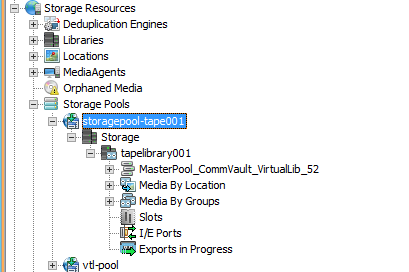
The new storage pool appears under the Storage Pools node.
Result
After the configuration the following will available in the CommCell Console:
-
A Global Secondary Copy Policy (Tape Network Storage Pool) under the Storage Pools node and under the Storage Policies node.
-
A Tape Library under the Storage node.
-
All the existing Global Secondary Copy Policies will appear as Storage Pools under the Storage Pools node.
What to Do Next
You can assign the global secondary copy policy to a storage policy copy. For more information, see Creating a Storage Policy Copy using a Global Secondary Copy Policy.