You can use the following procedure to convert the client computer to a virtual machine.
Procedure
-
Log on to the CommCell Console.
-
From the CommCell Browser, perform one of the following:
-
To convert to Microsoft Azure virtual machine, right-click client computer, click All Tasks > Virtualize Me >Microsoft Azure.
-
To convert to Azure Stack Hub virtual machine, right-click client computer, click All Tasks > Virtualize Me >Azure Stack Hub.
-
-
On the Select Recovery Points tab, click Next.
By default, the latest data and configuration of the client computer, backed up by the default backup set, will be used to create the virtual machine.
-
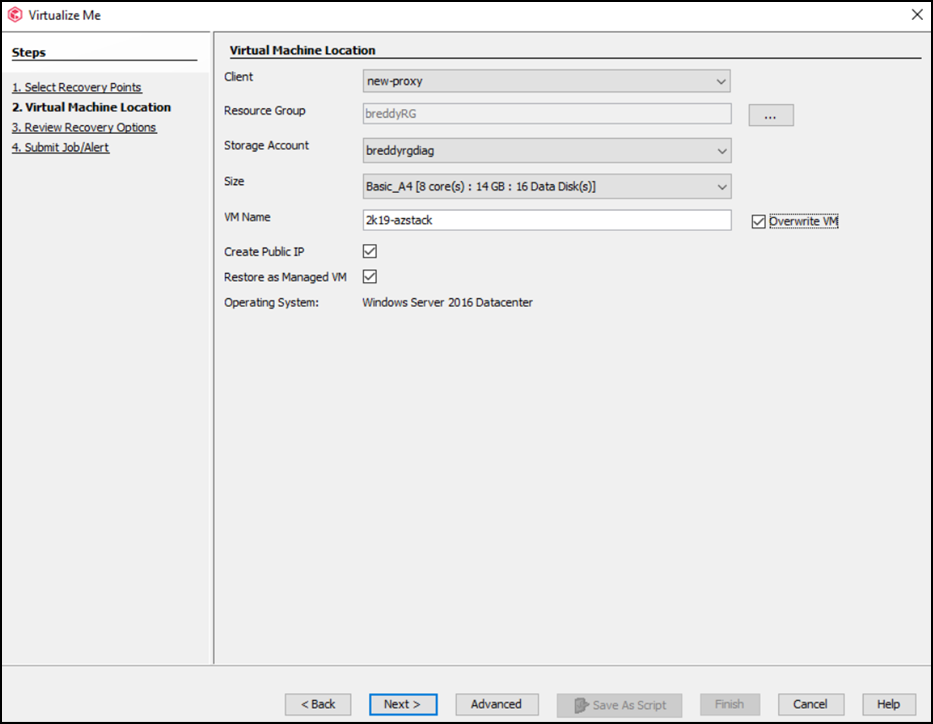
On the Virtual Machine Location tab, make the following selections:
-
In the Client box specify the name of the Azure or Azure Stack Hub proxy client computer used for the Virtualize Me operation.
-
In the Resource Group box, specify the Resource Group for the restored VM.
-
In the Storage Account box, select the storage account to be used for all selected virtual machines or disks. You can specify any storage account in the same region as the selected resource group.
-
In the Size box, select a size specification for the restored virtual machine.
-
In the VM Name box, enter name of the virtual machine.
-
Select the Create Public IP check box to automatically assign a public IP address to the virtual machine that is created.
Note
A public IP address is necessary to access the newly created virtual machine after the restore operation finishes. If you do not select the Create Public IP check box, then you can you can assign a public IP address to Azure or Azure Stack Hub virtual machine later after the restore operation finishes using the Azure or Azure Stack Hub portal.
-
By default, the Restore as Managed VM checkbox is selected. You can clear the checkbox, if you do not wish to restore the virtual machines as managed virtual machines.
-
Click Next.
-
-
On the Review Recovery Options dialog box, click on the General tab.
-
In the Override access token section, an access token with a validity period of seven days and associated with the user account which you have used to login to CommCell console is populated and will be used to perform the Virtualize Me operation.
To create an access token with a different validity period or to perform the restore operation using another user account, click the Click here to create new token link. You will be redirected to the Command Center application. For more information on how to create an access token in Command Center, see Creating an Access Token.
-
In the Access Token field, paste the access token that you created.
-
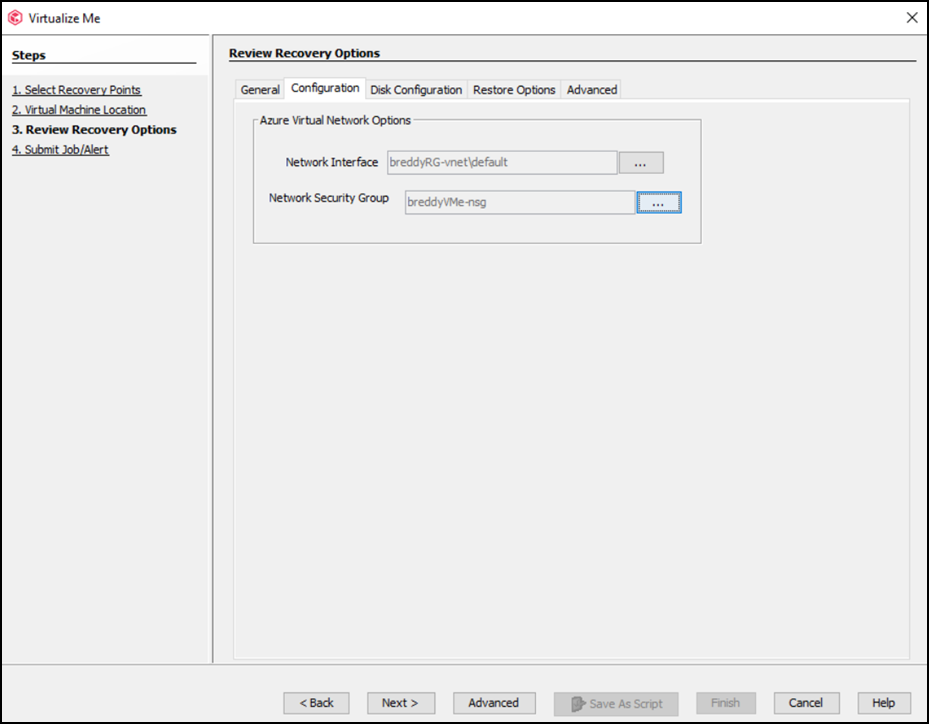
Click the Configuration tab and review the network interface configuration and security group. The virtual machine will be created with this configuration.
-
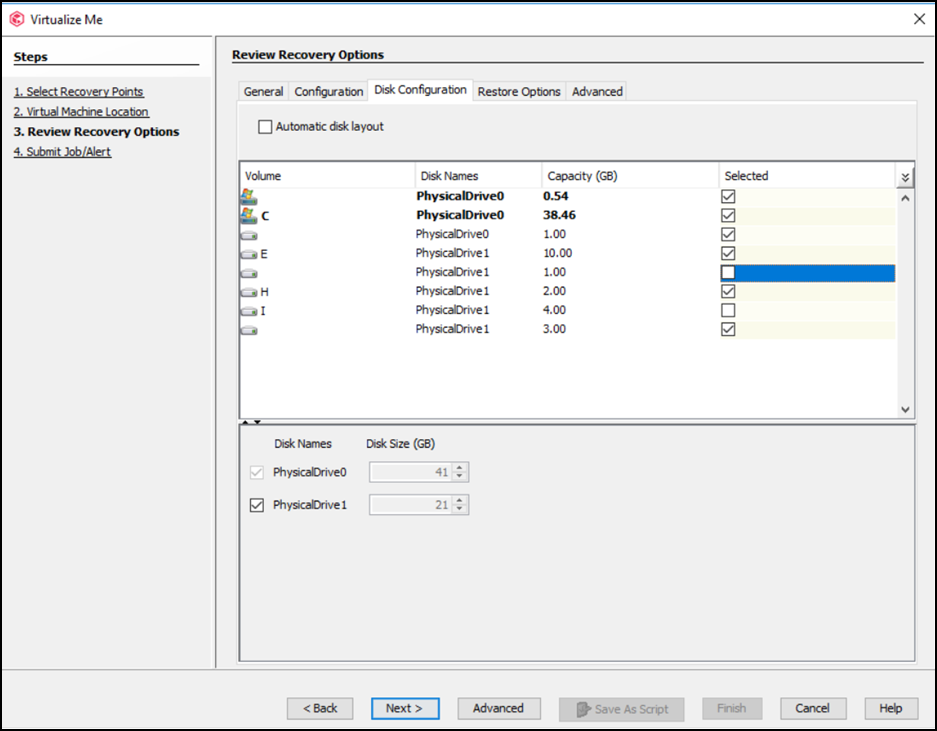
Click the Disk Configuration tab and review the available disk configuration. From the SCSI Controller list, select the storage controller. The virtual machine will be created with the available disk configuration.
-
Note: With Hyper-V, you can only create four SCSI controllers.
-
Optional: You can add the destination or the cloned computer to a domain based on your requirement. On the Review Recovery Options > Restore Options tab, click Change and enter the domain credentials.
-
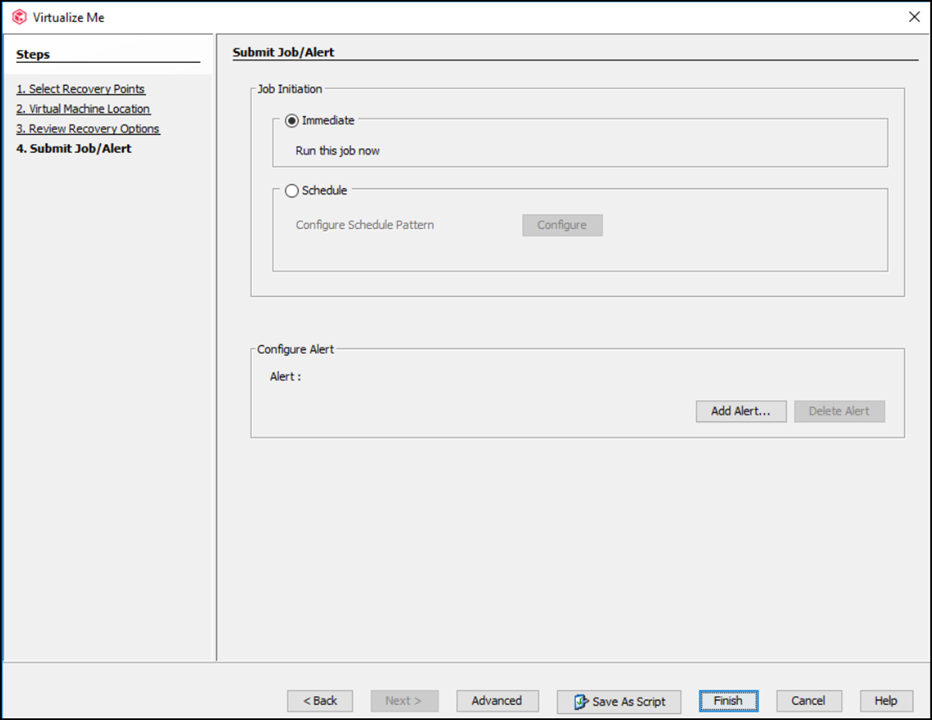
Click Finish to start the virtualization job.
-
You can track the progress of the Virtualization job from the Job Controller window of the CommCell Console. You cannot suspend or resume the job.
After Virtualize Me Job completes if you power on the original client computer, it will no longer be authenticated by the CommServe. The newly created virtual machine will become the active client.
-
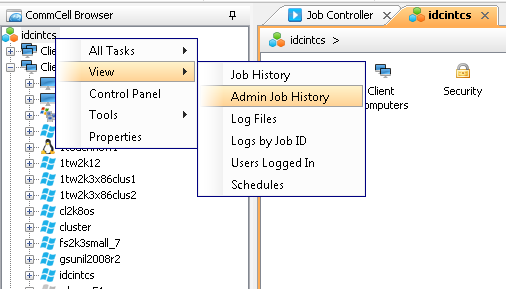
Once the job is complete, view the job details from the Admin Job History. From the CommCell Browser, right-click <CommServe> and select View | Admin Job History.
-
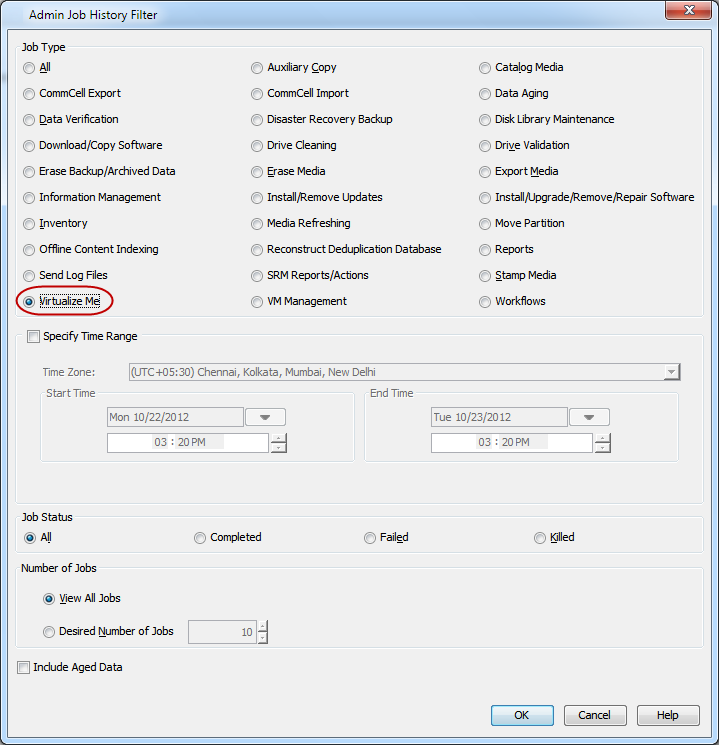
Select Virtualize Me under Job Type.
Click OK.
-
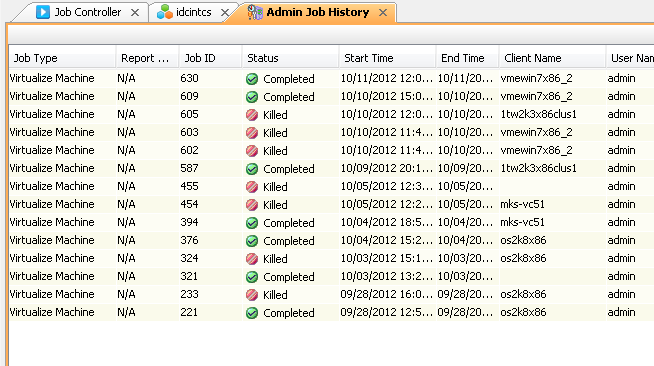
You can view the following options about the job by right-clicking the job:
-
Details of the job
-
Events of the job
-
Log files of the job
-
Resubmit the job to run it again
-